Admin Guide
How to create, manage, and run your Secret Santa group.
1
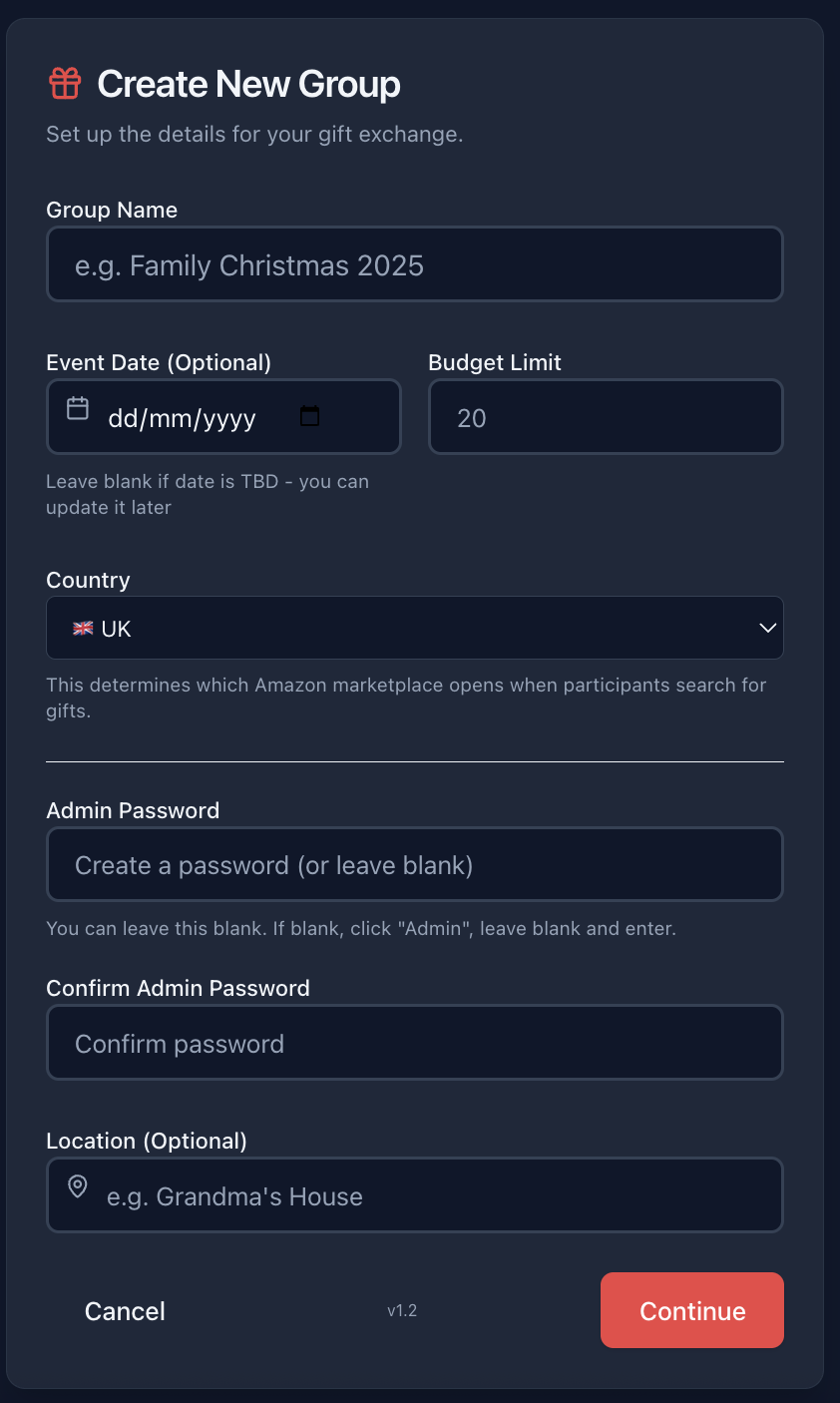
Create Your Group
Start by entering your group details on the home page. Set a name, budget, and date.
2
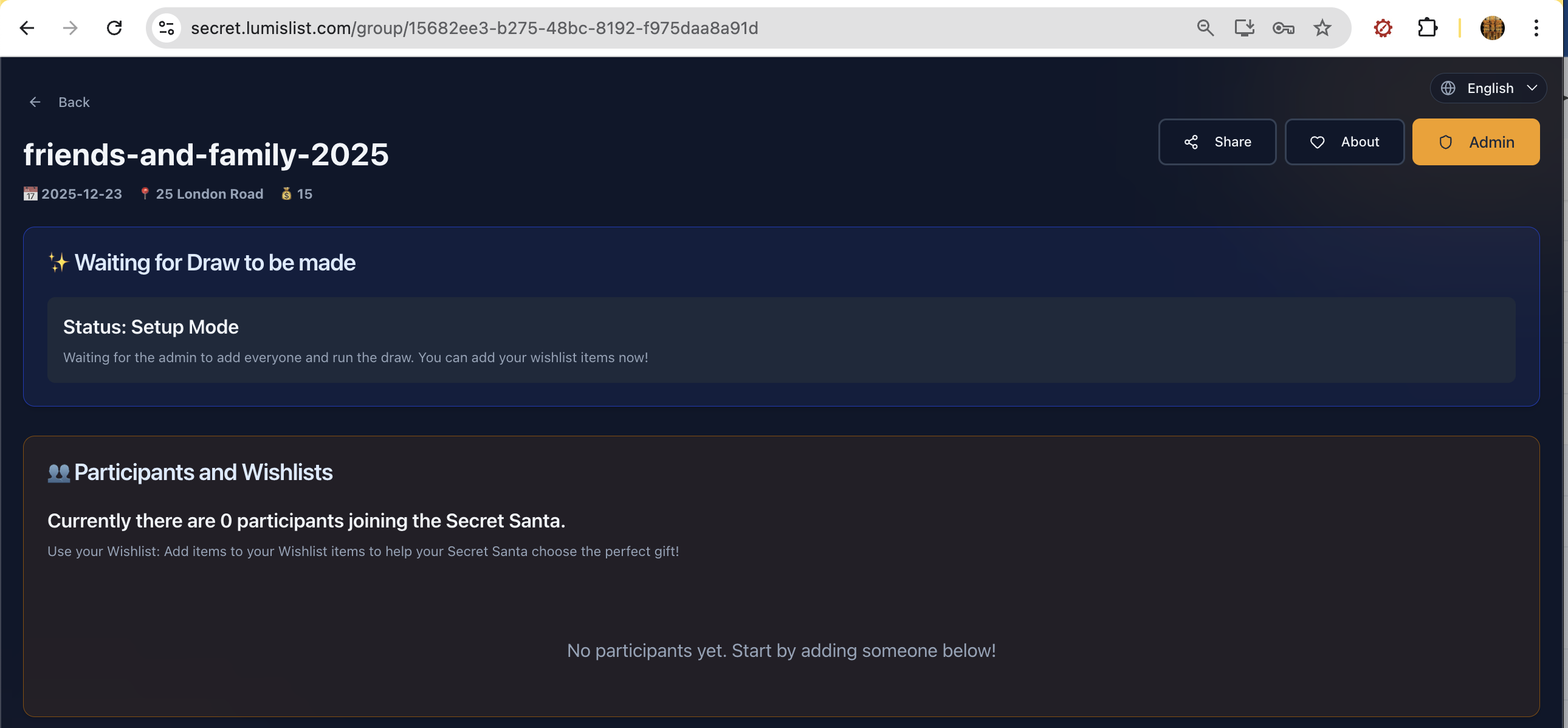
The Group Dashboard
The participant group view is the home page. Click Admin button.
3
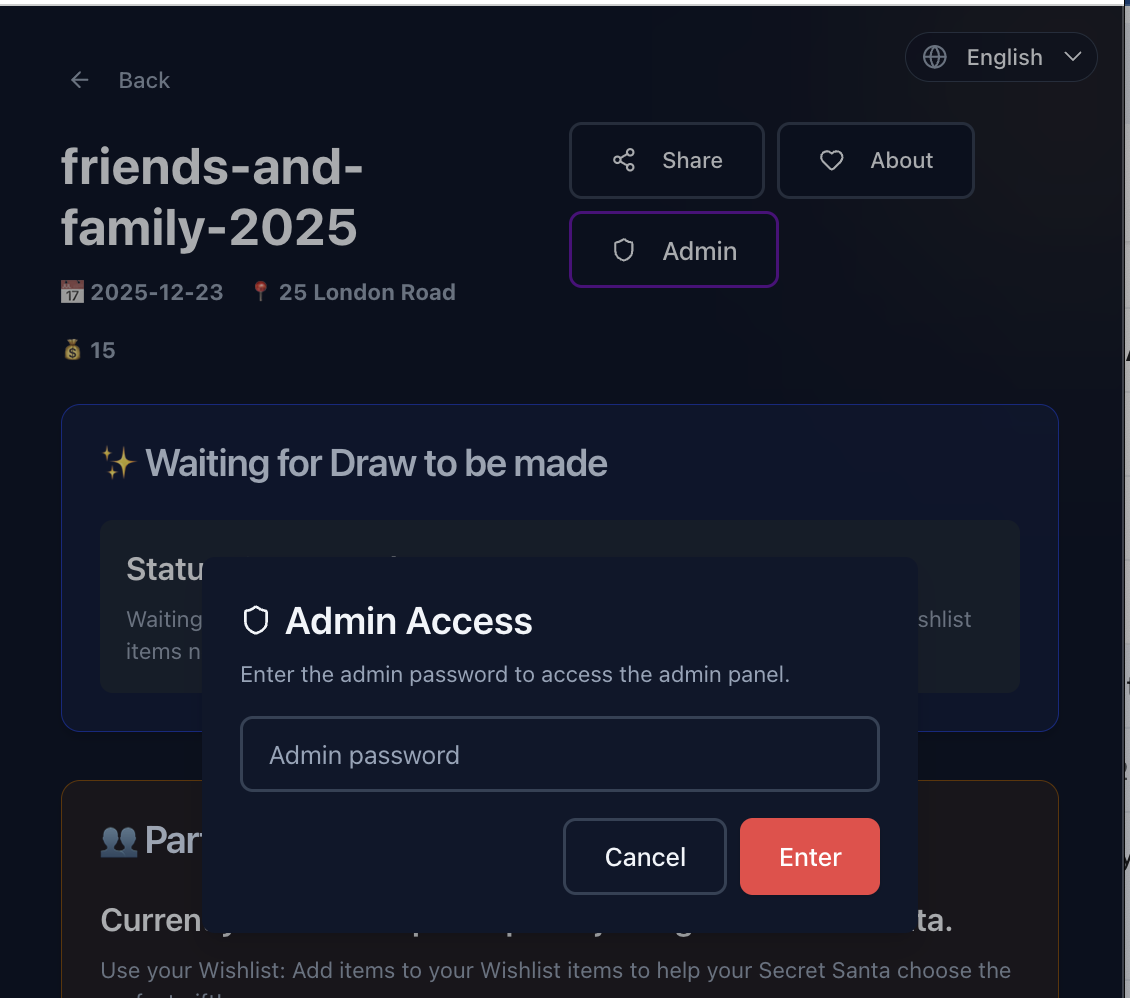
Admin Access
After pressing 'Admin' button and enter the password you used when creating the group.
4
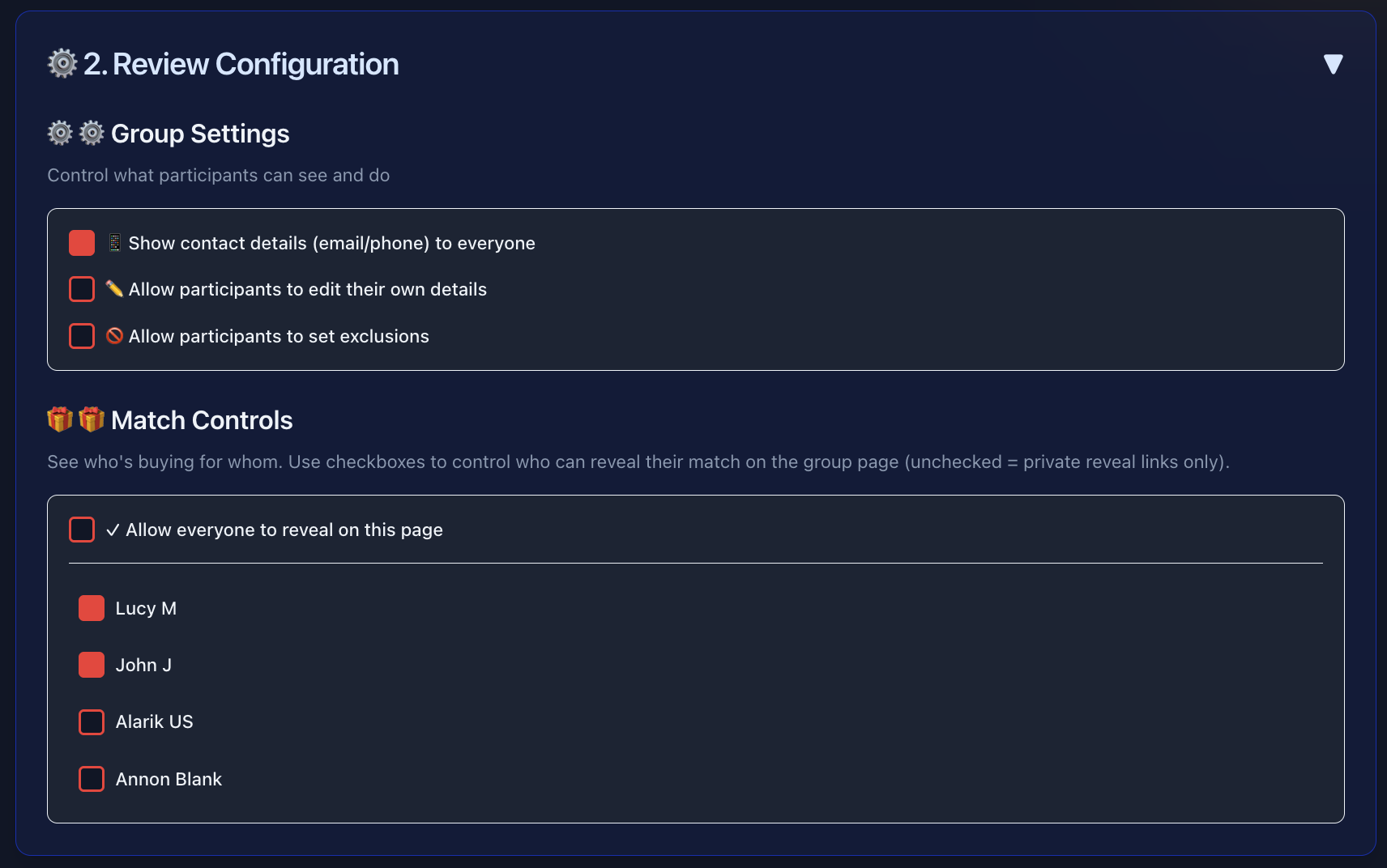
Review Configuration (Step 2)
Customize privacy settings, permissions, and reveal modes. You can also switch languages.
5
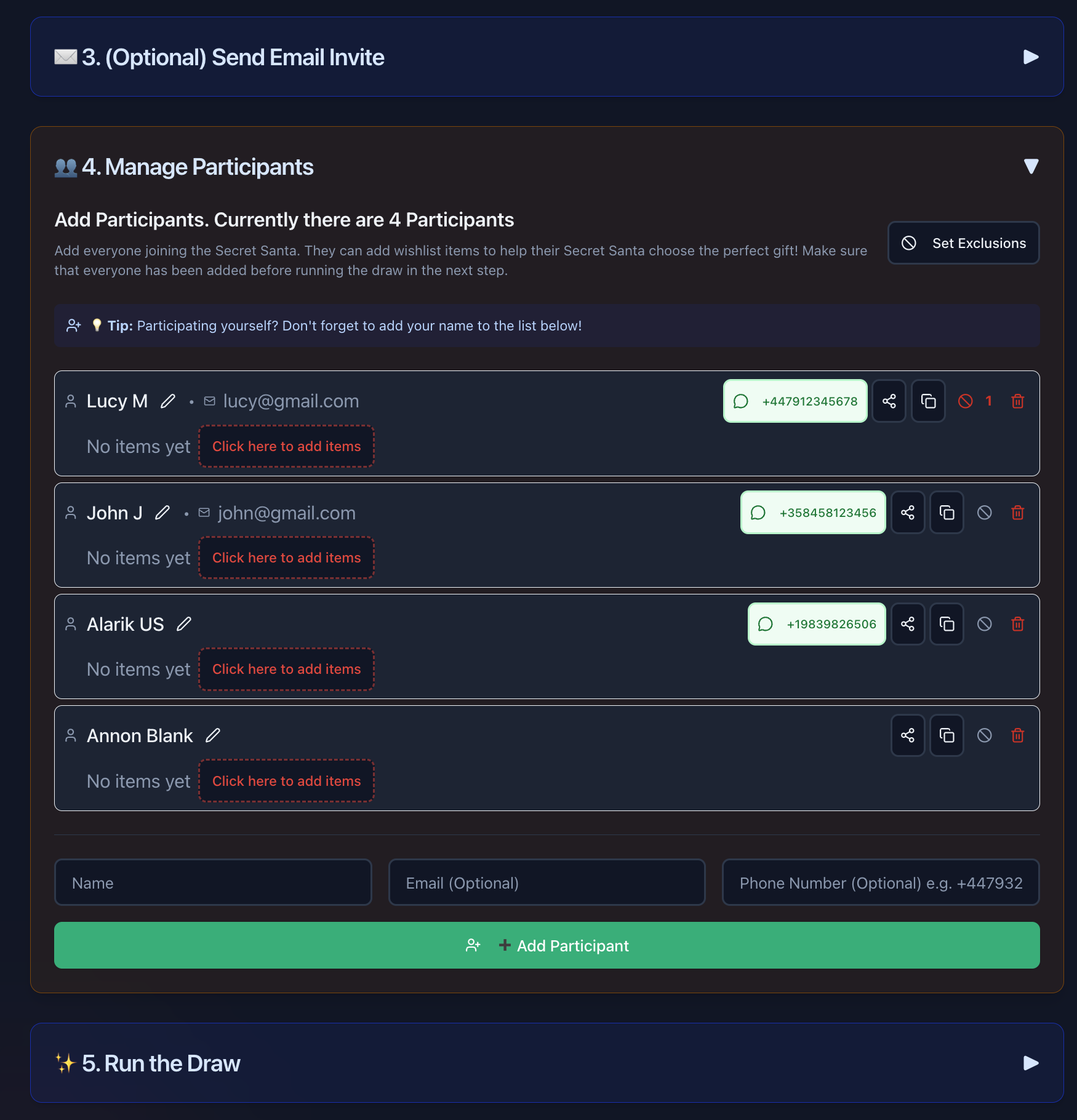
Add Participants (Step 4)
Add everyone who is joining. Add names, emails (optional), and phone numbers (optional - recommended for WhatsApp usage). Use with any social networking app you have in your device.
6
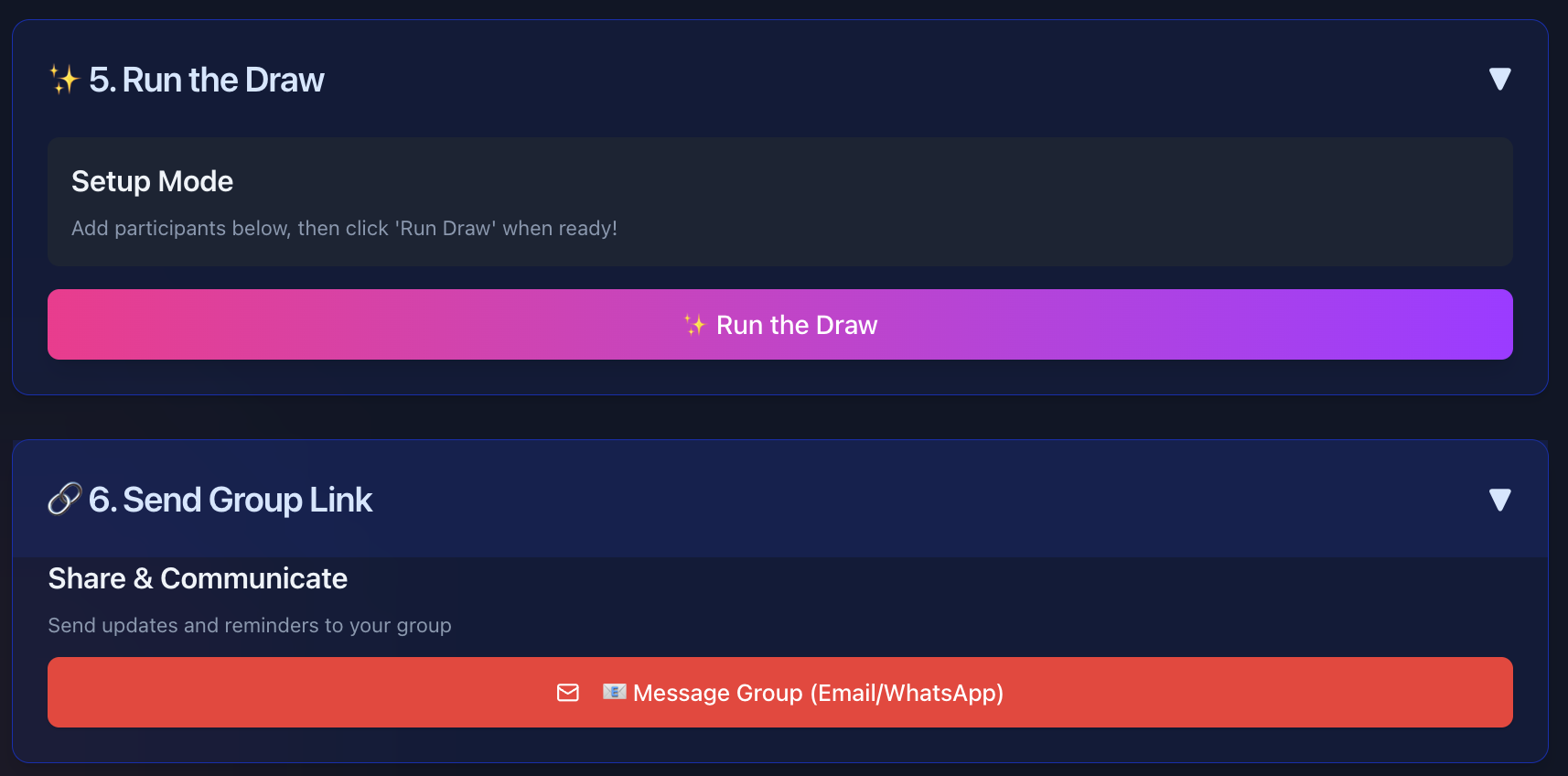
Run the Draw (Step 5)
Once everyone is added, click 'Run the Draw' to assign matches randomly.
7
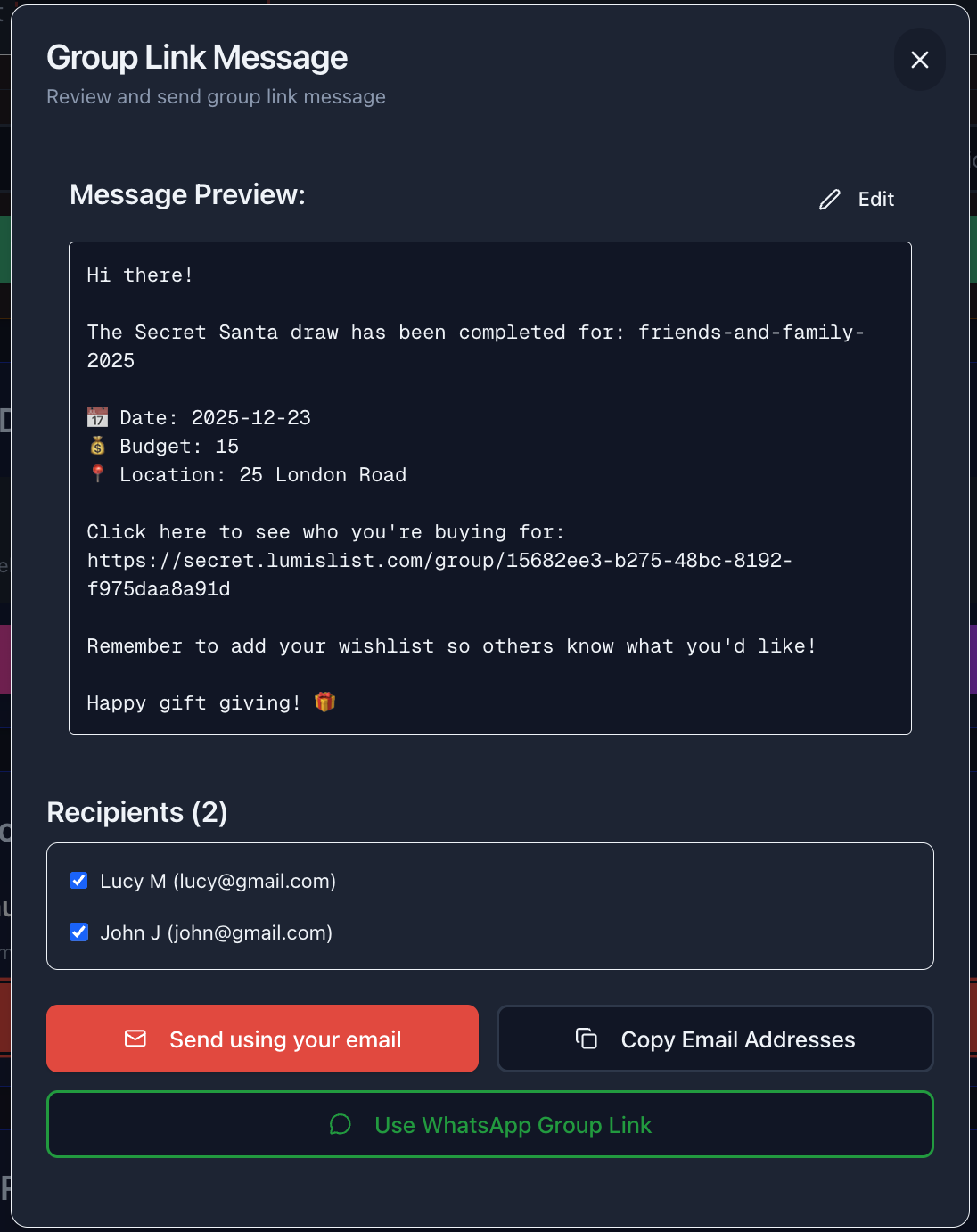
Share the Link (Step 6)
Send the group link to everyone via WhatsApp, Email, or Copy Link.
Reveal Management
Choose the best way for your group to reveal their matches.
Which method should I choose?
Admin: Choose Reveal Method
Group Size & Privacy Needs?
Small & Trusted
Group Page Reveal
Share Group Link
Participants click name to reveal
Participants click name to reveal
One-time reveal with IP/device tracking
Large or Sensitive
Private Link Reveal
Send Private Links
via WhatsApp/Email
via WhatsApp/Email
Only recipient views match
Option 1: Group Page Reveal
Best for small, trusted groups.
- Share the main group link with everyone (WhatsApp/Email).
- Tell participants to click their name and 'Reveal My Match'.
- They will see a one-time reveal screen with their match.
Option 2: Private Link Reveal
Best for large groups or maximum privacy.
- Go to the 'Manage Participants' section (Step 4).
- Click the phone number/WhatsApp icon for each person.
- This opens a pre-filled message with their unique private link.
- Send the message. Only they can see their match.
🚫 Setting Exclusions
You can prevent specific pairs from drawing each other (e.g., spouses, siblings).
- Go to 'Manage Participants' (Step 4).
- Click 'Set Exclusions' (or the shield icon).
- Select a person, then check the boxes for people they CANNOT draw.